An introduction to ArcGIS Workflow Manager: managing GIS workflows
Understanding GIS work means understanding the processes behind it. In this blog, you’ll learn what ArcGIS Workflow Manager is, why structured workflows matter for GIS teams and how it helps organize tasks, guide users and track progress across your organization, bringing clarity and consistency to everyday GIS operations.
In many GIS teams, the challenge isn’t just creating maps or managing data, it’s managing the work itself. Tasks move between team members, data passes through review cycles and processes evolve over time. Without a structured approach, workflows can quickly become inconsistent, difficult to track and hard to scale.
ArcGIS Workflow Manager is designed to address this challenge by helping organizations manage GIS work in a clear, repeatable and transparent way.
This blog introduces ArcGIS Workflow Manager for readers who are new to the product. We’ll explore what it is, the different formats it comes in and the basic principles behind how it works.
What is ArcGIS Workflow Manager?
ArcGIS Workflow Manager is Esri’s application for defining, managing and monitoring GIS workflows. Rather than focusing on maps or datasets, it focuses on the process behind GIS work, including who does what, in what order and under what conditions. At a high level, Workflow Manager allows organizations to:
-
Break work into structured, trackable jobs
-
Guide users through consistent steps
-
Assign tasks to specific roles or individuals
-
Monitor progress and workload in real time
-
Document and standardize institutional knowledge
Workflow Manager is commonly used in environments such as local government, utilities, transportation agencies and large enterprises; anywhere GIS tasks are repeatable, collaborative or subject to quality control.
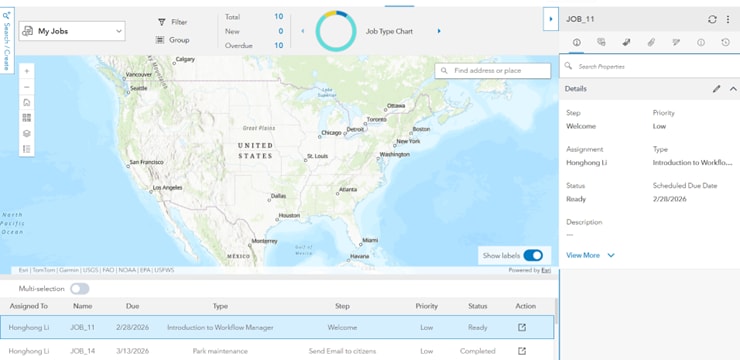
Workflow Manager interface showing job tracking and map-based workflow context
Different ways to use ArcGIS Workflow Manager
ArcGIS Workflow Manager is not a single deployment; it is available in multiple versions to support different architectures and workflows:
- ArcGIS Workflow Manager in ArcGIS Online
A cloud-based application integrated with ArcGIS Online. It is well suited for organizations needing a lightweight and accessible way to manage workflows without maintaining their own infrastructure. - ArcGIS Workflow Manager in ArcGIS Enterprise
Built for organizations running ArcGIS Enterprise, this option supports more advanced and detailed workflow management. It offers deeper configuration options, enhanced security and closer integration with enterprise systems. For example, it can be combined with webhooks and other enterprise services to enable more automated and sophisticated workflows. - ArcGIS Workflow Manager in ArcGIS Pro
Workflow Manager also integrates with ArcGIS Pro, enabling desktop GIS users to execute and manage work that involves editing, analysis or advanced geoprocessing tasks.
While each format has its own strengths, they all share the same core purpose: helping teams manage GIS work in a structured and consistent way. Choosing the right option often depends on whether your organization is web-first, enterprise-focused or heavily desktop-based.
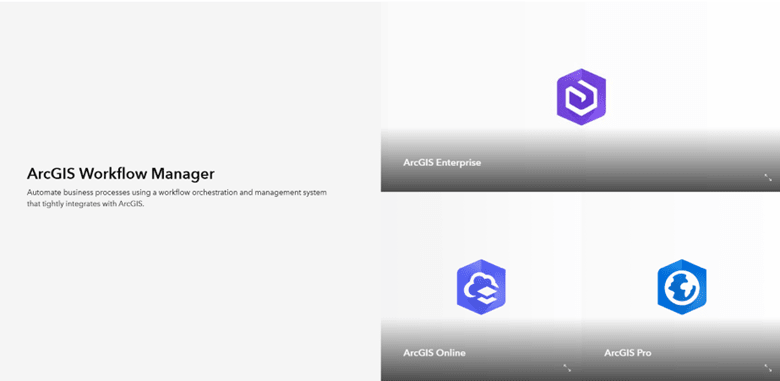
ArcGIS Workflow Manager availability across ArcGIS Enterprise, Online and Pro
Why Use ArcGIS Workflow Manager?
Many GIS teams rely on informal tools—emails, spreadsheets or verbal instructions—to manage work. While this may work on a small scale, it becomes increasingly difficult as teams grow and workflows become more complex.
ArcGIS Workflow Manager helps address common challenges such as:
- Inconsistent processes – Different people may perform the same task in different ways
- Limited visibility – Managers struggle to see the status of work or balance workloads
- Knowledge gaps – Critical steps may exist only in someone’s head
- Quality control – Reviews and approvals can be missed or undocumented
By centralizing workflow management, Workflow Manager brings clarity, accountability and repeatability to daily GIS operations.
Key concepts behind Workflow Manager
While ArcGIS Workflow Manager can support many types of workflows, its underlying logic follows a clear and consistent sequence. Understanding this sequence makes it much easier to design and use workflows effectively.
Designing the workflow diagram
Everything starts with a workflow diagram. The diagram defines the process, the order of steps, decision points and possible paths a piece of work can follow.
Each step in the diagram represents an action, such as editing data, running a tool, performing a review or confirming that a task is complete.
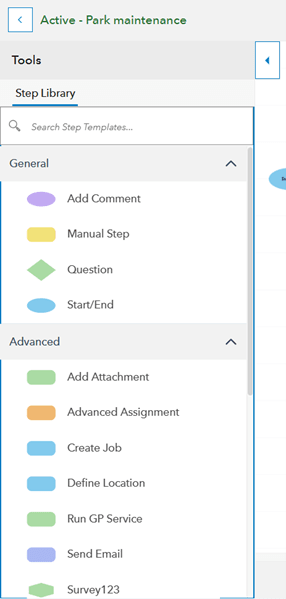
Step library in ArcGIS Workflow Manager showing available step types
The diagram acts as a visual blueprint, ensuring that work follows a standardized and repeatable process rather than relying on individual interpretation.
Before any work is created, the workflow itself must be designed.
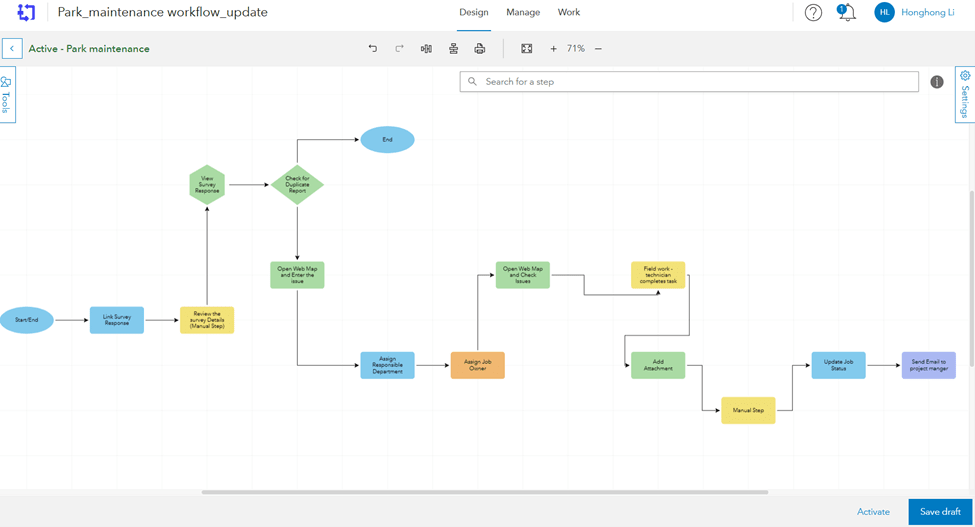
Workflow diagram in ArcGIS Workflow Manager
Creating job templates
Once a workflow diagram is in place, it is connected to a job template.
A job template defines the structure and default settings for a specific type of work, including:
- The job template profile, such as the job template name and summary, which describe what kind of work the template represents
- The workflow diagram the job will follow, specified through the current workflow diagram setting
- Default job properties, such as the initial and final job status, default job name format, priority and default assignment
In practice, the job template acts as the bridge between the workflow design and real work. It ensures that every job created from the template starts with the correct workflow, status and basic configuration, providing consistency across similar tasks.
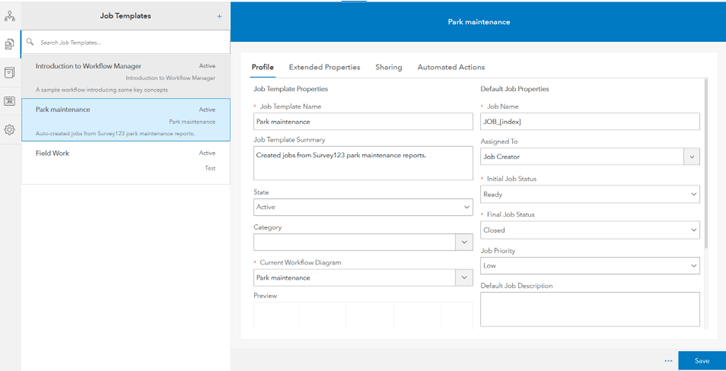
Job template configuration in ArcGIS Workflow Manager
Creating jobs
With the job template configured and linked to a workflow diagram, users can now create jobs.
Each job is an instance of real work that needs to be completed. When a job is created, it automatically follows the steps defined in the associated workflow diagram. As the job moves forward, users complete steps one by one, following the predefined process.
This structure removes ambiguity and helps ensure that required steps are not skipped.
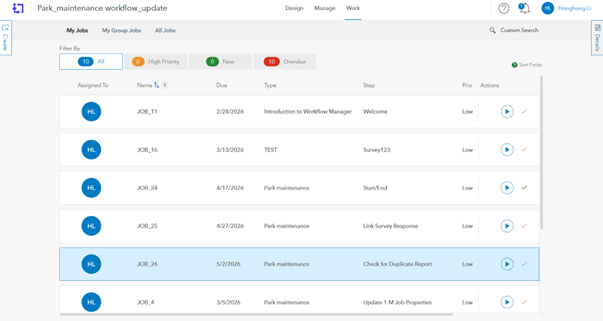
Job list view in ArcGIS Workflow Manager
Tracking Progress and History
As jobs move through the workflow, ArcGIS Workflow Manager continuously records progress and history.
This includes:
- Which steps have been completed
- Who completed them
- When each step was finished
This tracking capability provides visibility into active work, supports reporting and creates a clear audit trail. Over time, this information can be used to understand workload patterns, identify bottlenecks and improve workflows.
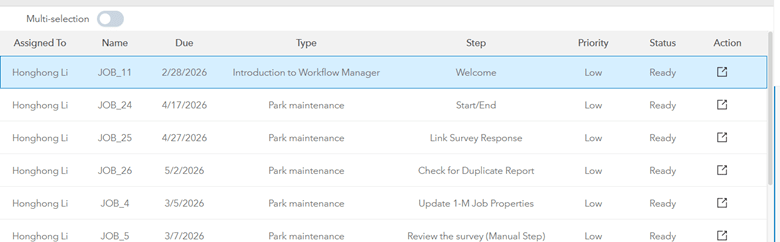
Job list in ArcGIS Workflow Manager
How Workflow Manager Fits into Everyday GIS Work
Rather than replacing existing GIS tools, ArcGIS Workflow Manager works alongside them.
For example, a workflow might include:
- Creating a job to update a dataset
- Editing data in ArcGIS Pro
- Performing a quality check
- Publishing updates to the web
- Marking the job complete
Workflow Manager ensures these steps happen in the correct order and that nothing is missed along the way. Over time, workflows can be refined and reused, helping teams work more efficiently and consistently.
Extending workflows with automation and integrationOnce a workflow is defined and jobs are created, ArcGIS Workflow Manager can be extended through automation and system integration, allowing organizations to streamline how work is initiated and processed.
Automation within workflows
Both ArcGIS Online version and ArcGIS Enterprise version support automated workflow steps. Within a workflow diagram, steps can be configured to automatically perform actions such as running geoprocessing tools or updating job properties as the job progresses.
By embedding automation directly into workflow steps, organizations can reduce manual intervention, improve consistency and ensure that key actions are executed in a predictable way as work moves through the workflow.
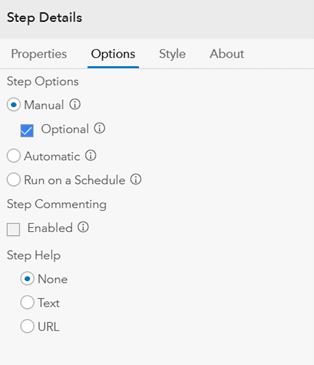
Step configuration panel in ArcGIS Workflow Manager
Creating jobs with webhooks (Enterprise only)
In addition to step-level automation, ArcGIS Workflow Manager Enterprise version supports creating jobs using webhooks.
Webhooks allow external systems to trigger job creation by sending HTTP requests to Workflow Manager. When a webhook is received, a new job can be created automatically from a specified job template. Information from the webhook payload can be stored as part of the job, such as saving the payload as an attachment or using extracted values to populate job properties.
This capability makes it possible to build event-driven workflows, where work is initiated by external events rather than manual job creation. Common examples include triggering jobs from form submissions, system notifications or other enterprise applications.
It is important to note that webhook-based job creation is available only in ArcGIS Workflow Manager Enterprise version and is not supported in the Online version.
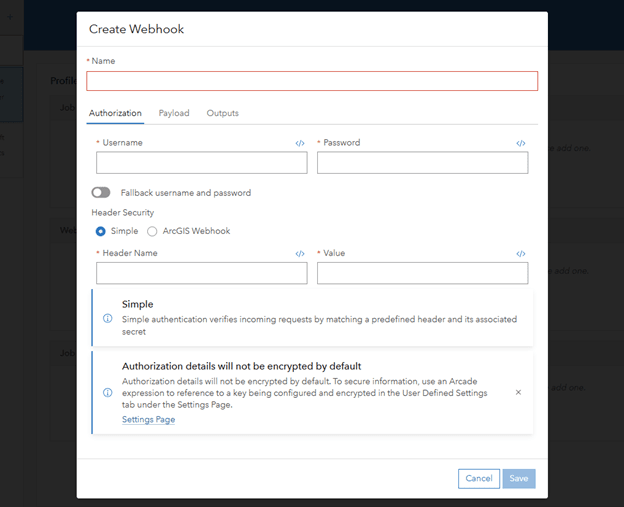
Webhook configuration panel in ArcGIS Workflow Manager
Bringing automation and integration together
Together, automated steps and webhook-based job creation allow ArcGIS Workflow Manager to coordinate both manual and automated work. While automated steps help streamline actions within a workflow, webhooks enable workflows to connect with external systems, creating a more responsive and integrated operational environment.
Final thoughtsArcGIS Workflow Manager helps organizations manage not just GIS data, but the processes that surround it. By providing structure, transparency and accountability, it enables teams to deliver consistent, high-quality GIS work at scale.
Whether you are working in ArcGIS Online, ArcGIS Enterprise or ArcGIS Pro, Workflow Manager offers a flexible foundation for organizing and improving how GIS work gets done.
For teams looking to move from ad-hoc task management to structured, repeatable workflows, ArcGIS Workflow Manager is a powerful place to start.