How to renew your Cityworks 15.8.x and Office Companion license
If your licensing has changed, you may need to activate or reactivate your Cityworks license key. This guide explains how to renew your Cityworks 15.8.x or Office Companion license by running the correct installer and following the activation steps.
- Right-click the installer and select Run as Administrator- to launch the installer.
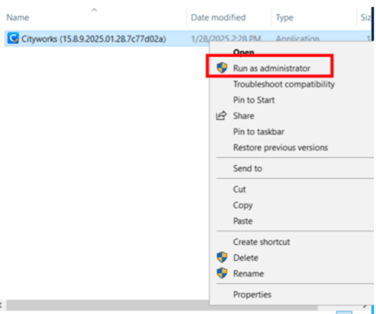
Windows File Explorer showing the Cityworks installer file with the “Run as administrator” option selected.
The installer automatically checks to make sure all the prerequisites are installed. If an application is missing, the installer displays a message instructing you to install the needed prerequisites.
If all-prerequisites are properly installed, three green check marks appear.
- Click Next.
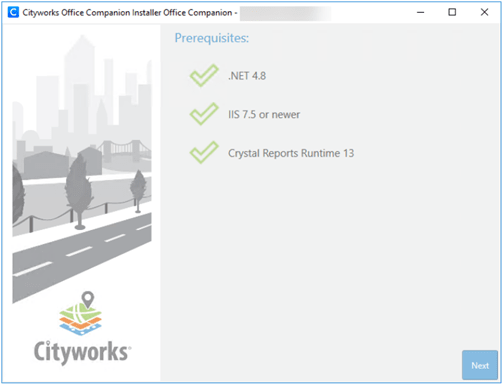
Cityworks Office Companion Installer showing all prerequisite checks passed before installation.
- Select the Activate option and click Next.

Cityworks Office Companion Installer screen with the “Activate” option selected.
- Select the Web Site and the Virtual Application to be updated and Click Next.
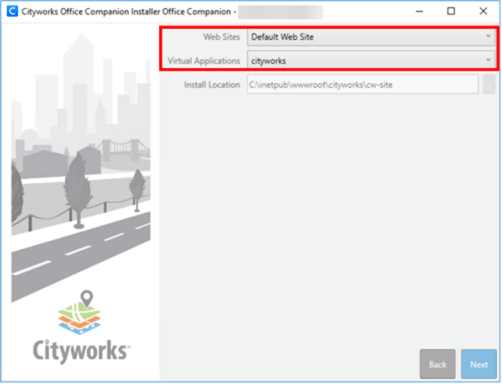
Cityworks Office Companion Installer screen showing website, virtual application, and install location settings before proceeding.
There are two options for activating your license key: Online or Offline. Online is the preferred method, while Offline is only used in rare cases when a site is unable to reach the authorization servers that Azteca Systems uses.
Select Online to activate the license key. If you require an Offline activation, contact Esri Canada Technical Support via phone 1-877-441-0337 or by email support@esri.ca.
- Enter the License Key number.
IMPORTANT: Unless otherwise noted, the key code remains the same code used to originally activate the site; only your contract dates are updated on the license server. However, it's possible that a new key code has been issued so it is important to verify by reviewing the documentation sent to you by the licensing team.
- Click-Activate. If the license is not activated, it causes problems when the Cityworks site is activated.
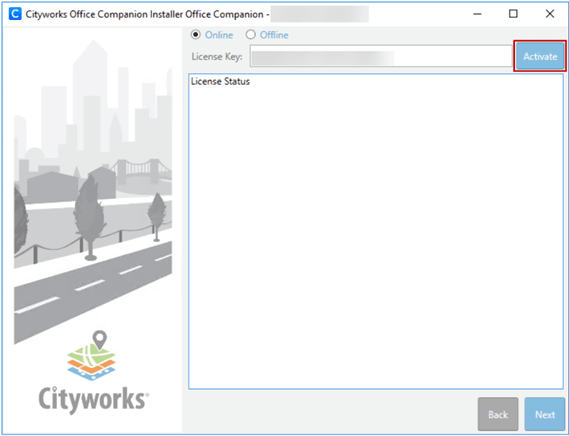
Cityworks Office Companion activation screen showing online/offline activation options, license key entry, and activation status area.
7. When the license information has been retrieved and displays in the License Status section, click Next.
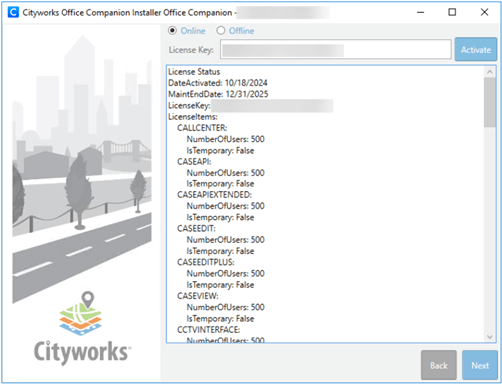
Cityworks Office Companion activation screen displaying license key entry and detailed license status information.
- Verify that the site information is correct in the Activate Review section and click Activate.
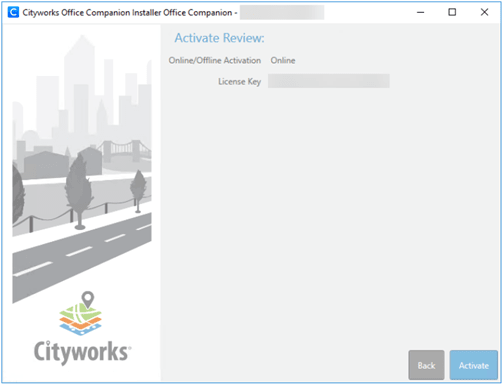
Cityworks Office Companion activation review screen showing online activation selected and license key confirmation before final activation.
- You are asked if you want to proceed with the website creation.
- Click-Yes.
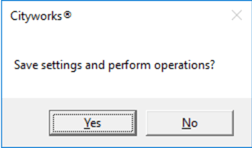
Confirmation dialog in Cityworks asking whether to save settings and proceed with the requested operations.
A-box with a status bar displays while the activation occurs.
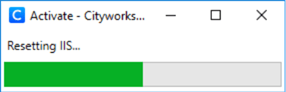
Cityworks activation progress window indicating that IIS is currently being reset as part of the activation process.
- A message appears when the activation is complete.
Click-OK.
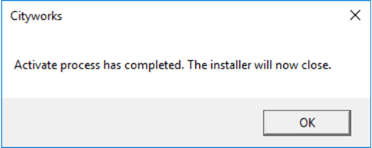
Cityworks activation confirmation dialog indicating the activation process has finished and the installer will close.
Essential Guide Available on MyCityworks
HOW TO: Renew Your Cityworks License File