Monitor your ArcGIS organization with the Admin Insights template
Do you know how your ArcGIS organization is really being used? The Admin Insights template brings users, licences, content and groups together in a series of dashboards, giving administrators the visibility they need to monitor their organization and put Web GIS governance into practice. Discover what the dashboards offer and how to set them up in your own organization.
Managing an ArcGIS organization is an ongoing process. As users, licences, content and groups change over time, administrators need visibility into how their organization is being used and where attention may be needed.
The Admin Insights Template provides that visibility through ArcGIS Notebooks and ArcGIS Dashboards, helping administrators monitor key areas of their organization and put Web GIS governance into practice.
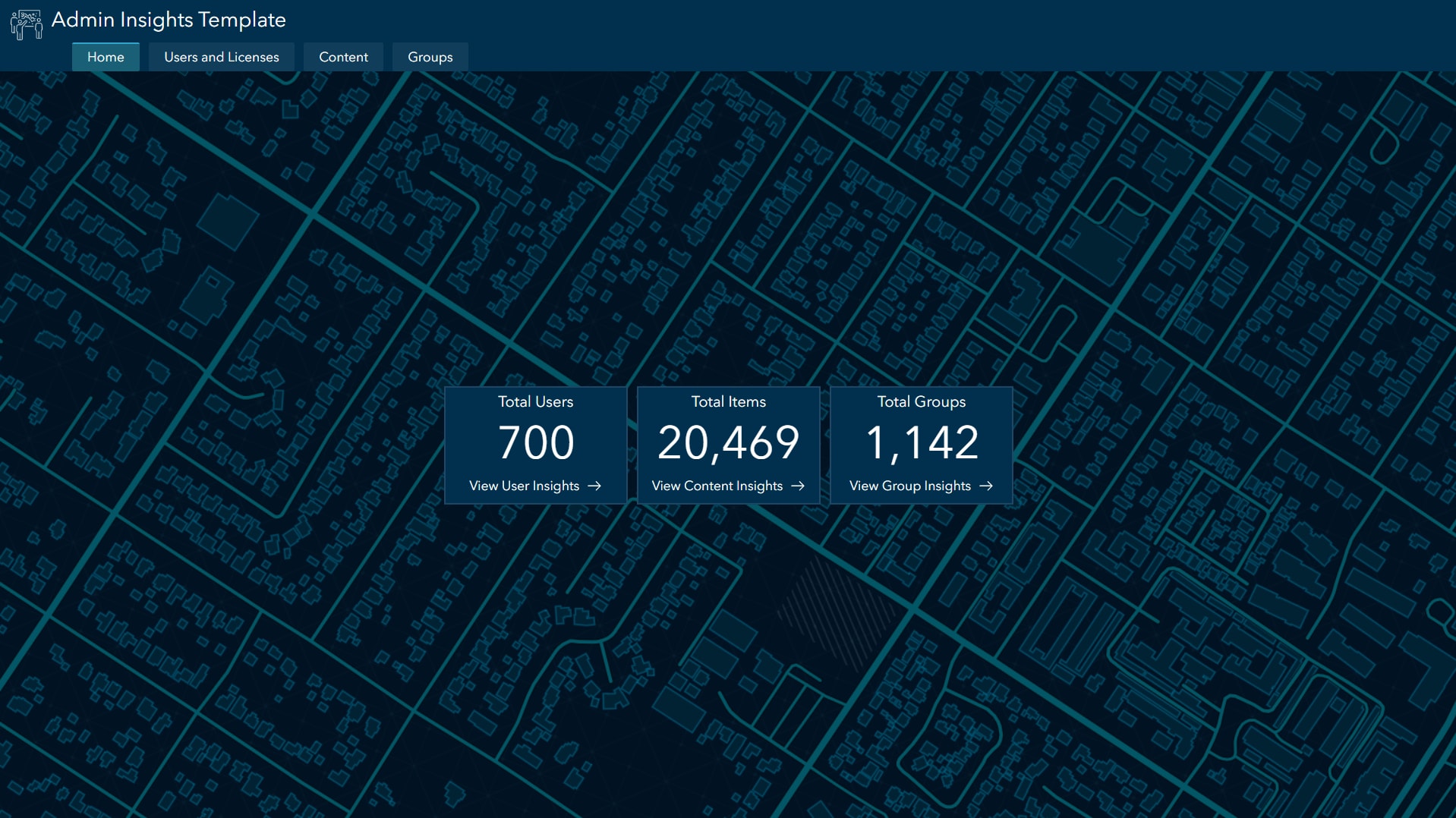
The Admin Insights home dashboard provides an overview of users, content and groups across the organization.
What does the Admin Insights template provide?
The Admin Insights template uses the ArcGIS API for Python to bring key information about your organization into a series of dashboards. These dashboards focus on three important areas of organization management: users and licences, content and groups.
Users and licences
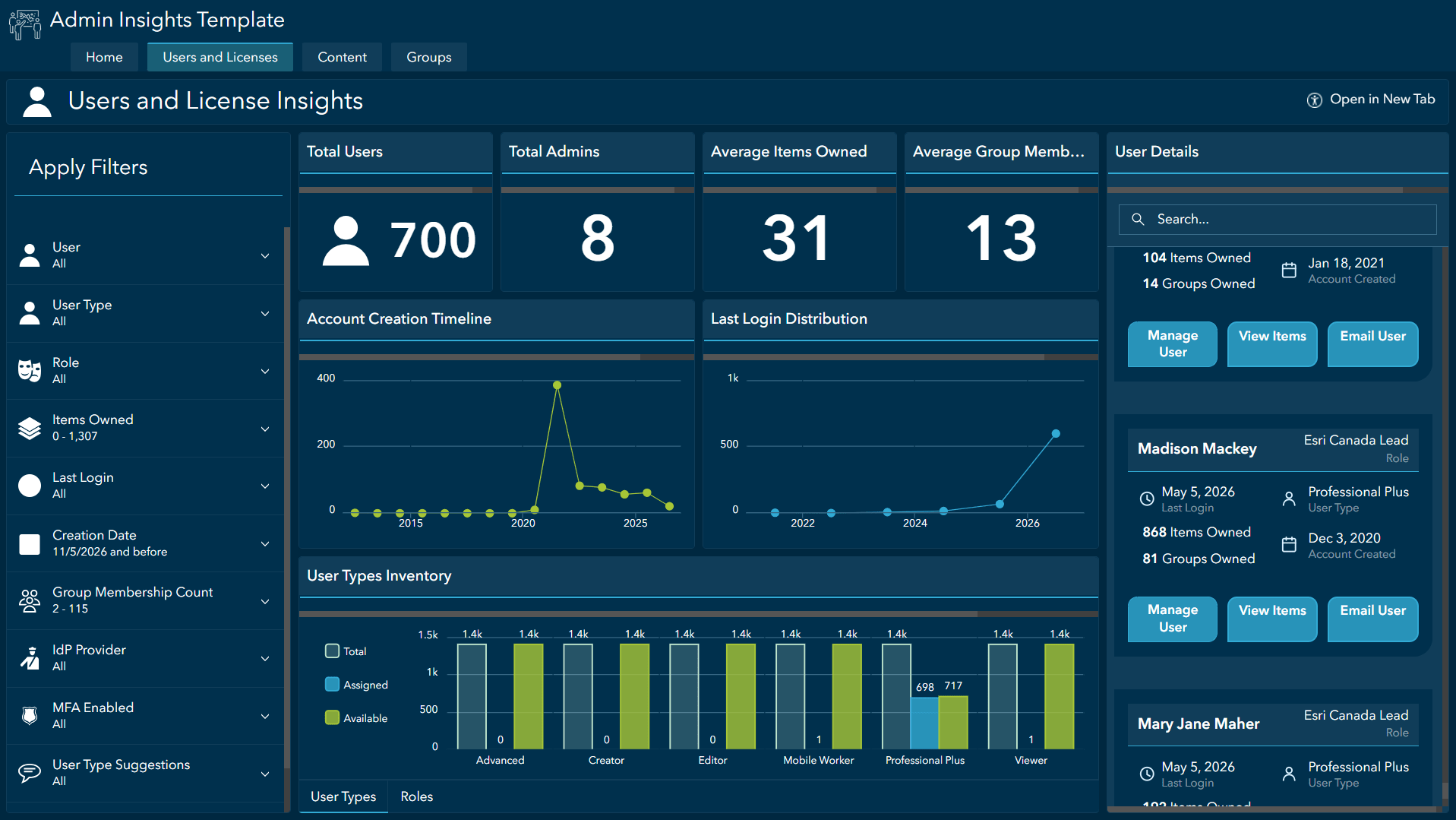
The Users and Licences dashboard provides insights into user activity, licence use and account management.
Get a better picture of user activity and licence use across your organization. The dashboard can help you spot inactive or underused accounts, review how licences are assigned and identify trends that may point to opportunities to improve onboarding, licensing or user management.
Content
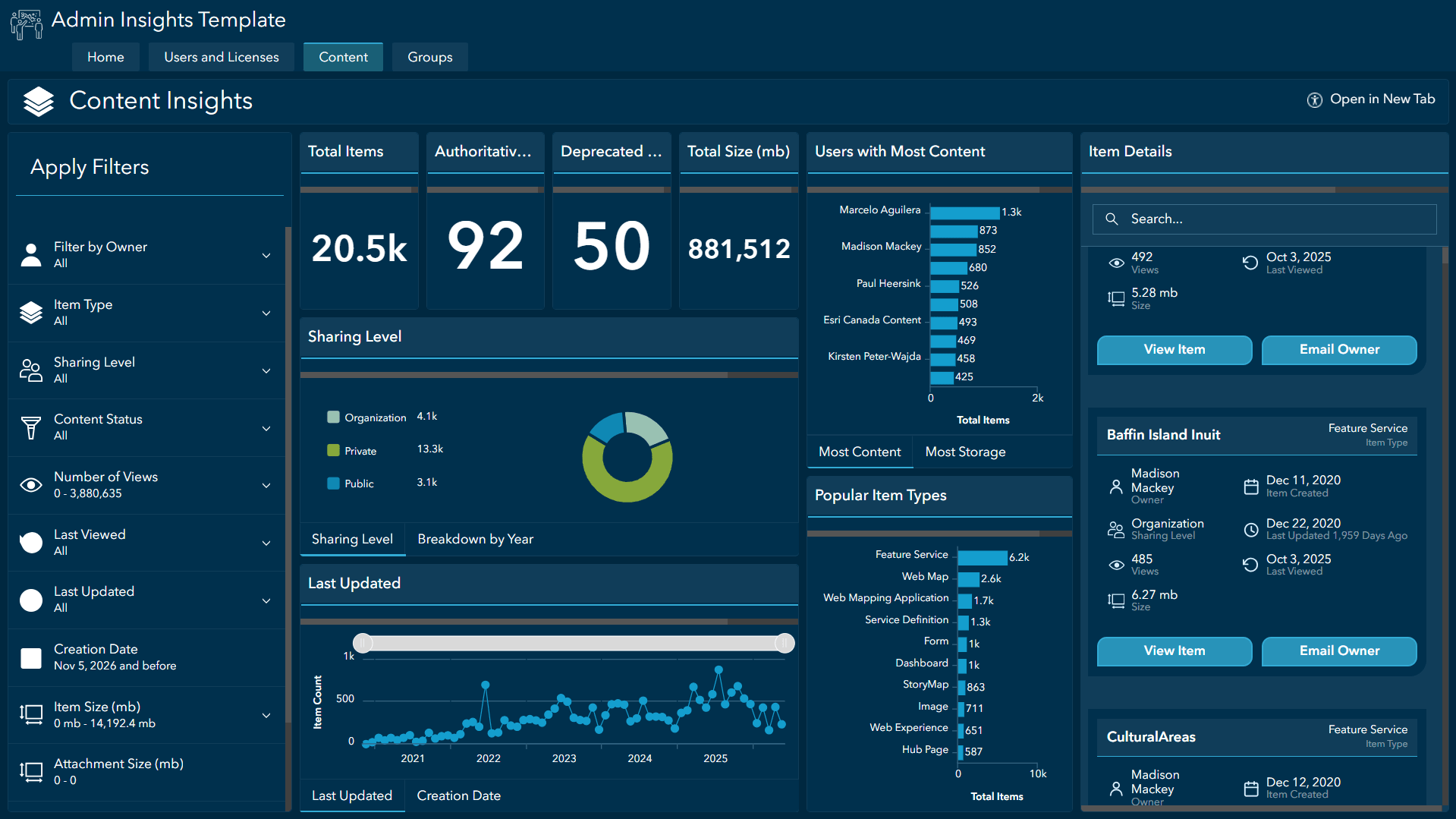
The Content dashboard provides insights into content, sharing, usage and item activity across the organization.
Understand what content exists across your organization and how it is being used. The dashboard can help uncover stale or unused items, review sharing and metadata practices, track the growth of non-authoritative content, monitor high-impact items such as publicly shared, highly viewed or large content and explore dependencies between related items.
Groups
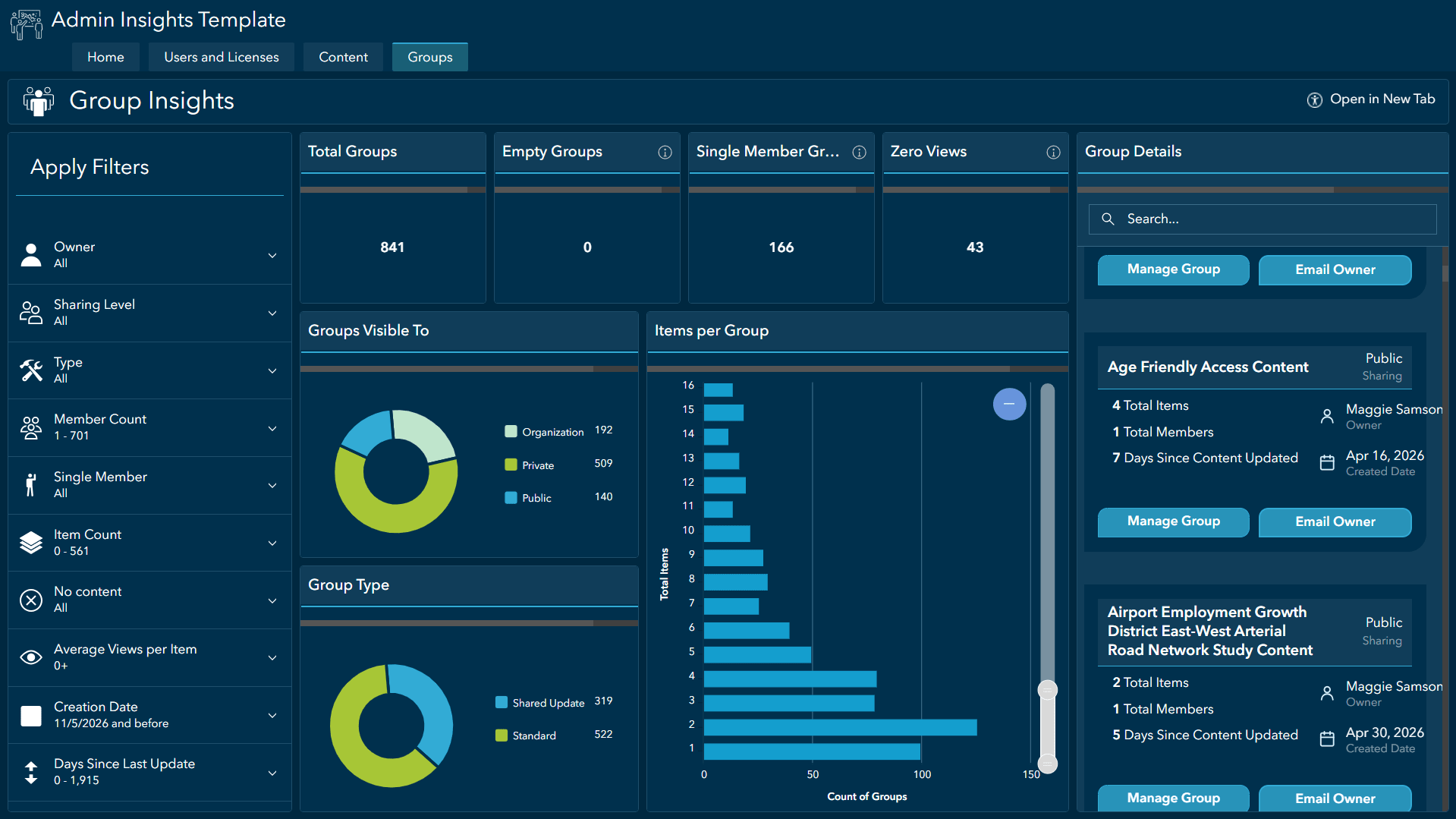
The Groups dashboard provides insights into group membership, sharing and activity across the organization.
See how groups are supporting content sharing and access across your organization. You can identify groups that play an important role in sharing workflows, find groups with little activity, including empty or single-member groups, and review whether sharing settings continue to align with your organization's access and collaboration policies.
How the Admin Insights template works
The Admin Insights template brings the dashboards together in an ArcGIS Experience Builder app, giving administrators a central place to explore information about users, content and groups.
The dashboards draw from a shared hosted feature service that inventories users, content items and groups across the organization. A notebook using the ArcGIS API for Python collects this information and updates the feature service. The notebook can also be scheduled to run regularly, so the dashboards reflect current information.
While the template was developed using ArcGIS Online, the same approach can be adapted for deployment in ArcGIS Enterprise.
Put the template into action
To get started, create your own copies of the notebooks and use them to set up the template within your ArcGIS organization:
- Open the Admin Insights Template – Initialization Notebook and sign in to your organization if prompted.
- Select Save As to save a copy of the initialization notebook to your content.
- Open your saved copy and run all cells.
- When the notebook finishes running, review the CLONED ITEMS SUMMARY, which lists the five new items added to your content. Make note of the data table item ID. You'll need it to configure the inventory notebook.
- At this point, the dashboards will still be empty. The Organization Inventory Notebook populates the underlying data table with information from your organization.
- Open the Admin Insights Template – Organization Inventory Notebook, sign in if necessary and save a copy to your content.
- In your saved copy, update the fs_id variable with the item ID of the data table created by the initialization notebook.
- Run all cells to populate the underlying data table used by the Admin Insights app.
- Once the data has been populated, open the app and review the dashboards.
- You can also schedule the inventory notebook to run regularly to keep the underlying information up to date.
Moving forward
Good governance requires ongoing attention. The Admin Insights template gives administrators a practical way to continue monitoring and managing their ArcGIS organization as it evolves. As work on the template continues, watch for future updates and enhancements.