Creating inclusive stories with ArcGIS StoryMaps: a practical guide
What if your ArcGIS StoryMap story could reach people that you didn’t even realize you were leaving out? Inclusive stories remove barriers, amplify diverse voices and make information more meaningful. In this post, we explore key considerations and tips to design StoryMaps stories that are accessible, welcoming, and truly representative of the audiences we serve.
ArcGIS StoryMaps stories are a powerful way to present information. They blend maps, text and multimedia into a single interactive experience. When they’re not designed with everyone in mind, they can quickly become overwhelming, especially for audiences who may process information, visuals and navigation differently. It’s important to understand that there’s no one size fits all approach to accessibility or inclusion. Still, there are practical design choices that can make StoryMaps stories more approachable, flexible and inclusive for a broader audience. With the right techniques in mind, your story won’t just inform users, they’ll invite everyone in. A thoughtful design can turn a good story into a shared experience.
To put these ideas into practice, it helps to focus on a few key aspects of how stories are structured and experienced by users. The sections below highlight design choices that can improve usability and empower your audience to explore with confidence.
Guide readers with intentional layout choices
Leave behind:
- Long blocks of text.
- Overly complex layouts.
- Too many interactive elements.
Level up with the following:
- Chunk your content into short digestible sections, include headings and think about breaking sections into multiples pages or chapters.
- Use bullet points and leave some white space in the story. This will give you that extra accessible edge.
- Add alternative text! If you’re stuck on how to describe an image, use the ArcGIS StoryMaps assistant (preview) to get alternative text suggestions.
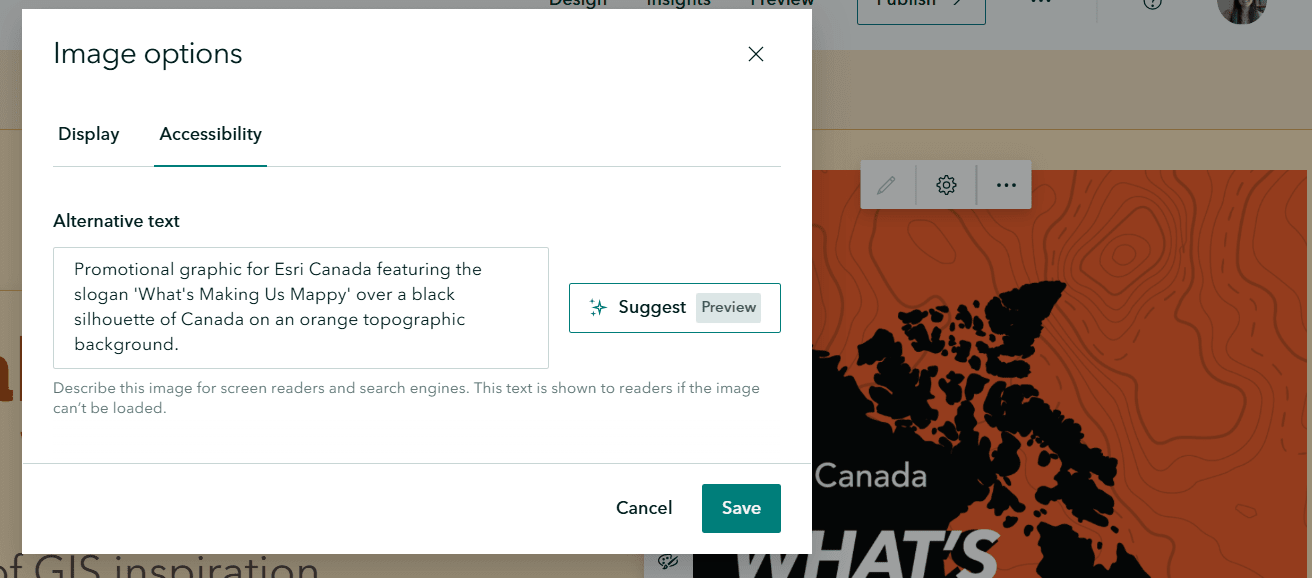
The alternative text option in ArcGIS StoryMaps
Use predictable navigation patterns
Have you ever browsed a website where the back action returned you to a different page instead of the previous screen and thought to yourself, “this doesn’t make sense”? This is an example of creating uncertainty, because users cannot build a reliable mental model of how to move through the product. Use that example as a cue to make your story path predictable. Clear, consistent navigation helps people understand the information that is being presented to them. Here are some examples:
- Use linear storytelling.
- Include a linear scroll rather than complex branching.
- Include a table of contents.
- Avoid using autoplay. Let people navigate to the next section when they are ready so they can avoid surprises.
Create clarity with purposeful colour and motion
Moving forward, let’s think about colour and motion. What does motion mean in reference to StoryMaps stories? We’ll start with sidecars and map tours. Consider the amount of motion on your maps when you scroll between slides or map tour places and be mindful of your map zoom levels.
The next motion topic is about the configure playback setting for videos. There are two playback options that can be hard to consume if someone isn’t ready to hear sound or see intense visuals. They are called autoplay without controls and autoplay with controls. Is the autoplay option necessary to tell your story? If it is, consider adding a clear warning beforehand.
Now it’s time to discuss colours. Choosing colours and a theme is one of my favourite things to do when creating StoryMaps stories. It’s also an important aspect to ensure that the content is readable. Bright, high contrast patterns in images can be hard to consume; a calm muted colour palette is more enjoyable to look at and easier on the eyes. When choosing text formatting options like the colour picker, follow the contrast checker’s feedback about whether your selected colour meets the standard colour contrast guidelines.
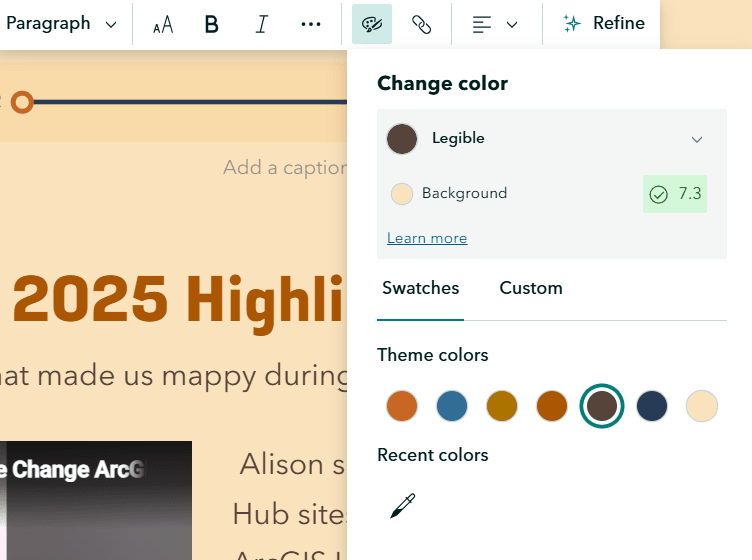
ArcGIS StoryMaps colour picker revealing the feedback box that checks the colour contrast
Lastly, we can’t talk about colour and themes without mentioning basemaps. I highly recommend considering the Community Map of Canada’s Grey Accessible Basemap that strives to meet the Canadian standards on Web Accessibility AA standard.
Advice from the experts
Inclusive design doesn’t stop with the suggestions I’ve made, it’s an ongoing conversation. In the Geographical Thinking podcast, Jessica McCall, senior accessibility project manager for the Esri accessibility team talks through inclusive design in ArcGIS. The conversation highlights real-world considerations and takeaways summarized below:
- Plan ahead for accessibility. Think about accessibility starting from the very beginning of the project.
- Where can you make the most impact on accessibility? Is it with headings, labels or colour contrast?
- Test accessibility through the design and development process to make sure you are staying on track.
- Seek user feedback throughout the process, most importantly from the people who require accessibility support.
Do you want to learn more about accessibility? I highly recommend reviewing the resources below. Let’s work together to create accessible, inclusive geospatial content!