ArcGIS Instant Apps: Gallery template vs Category Gallery template
Are you curious what the difference is between the Gallery Template and the Category Gallery Template in ArcGIS Instant Apps? This blog breaks down the key differences and start building with the Gallery template.
As the ArcGIS ecosystem is rapidly evolving, it is important to stay up to date with the latest and greatest in each application. This will allow us to gain flexibility to adapt the user experience for our applications. Recently, the introduction of the new Gallery template in ArcGIS Instant apps has allowed users to have a more intuitive interface to visualize their content in the form of a gallery.
What is the difference?
The Gallery template in ArcGIS Instant Apps is used to present items that are stored in groups. They can be showcased through an application with the capability to filter, search and view/explore applications. An example of how this could be used is to present a collection of maps in apps all in one space. This will allow users to easily interact and switch between the various maps and apps that are within this group.
The category template is similar to the Gallery template but will soon be retired. This type of template has identical functionality as it still allows users to navigate between items within a group, but without the modern UI and improved configuration options available within the Gallery template.
How to access these templates
ArcGIS Instant apps is available within ArcGIS Online and ArcGIS Enterprise. Meaning you can start by selecting the app launcher in the top right corner of your portal/ArcGIS Online interface and clicking on ArcGIS Instant Apps. When ArcGIS Instant Apps loads up, you will be greeted with the various templates to select from to get started, two of which being the Gallery and Category Gallery template.
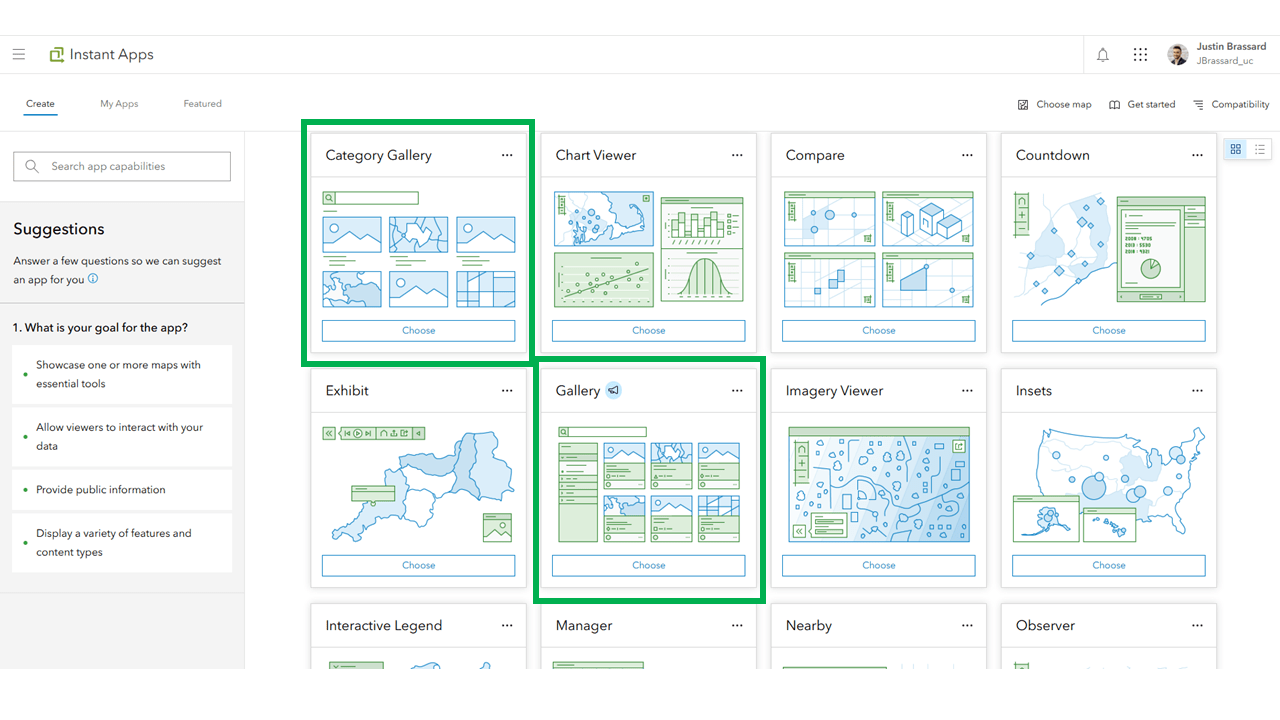
ArcGIS Instant Apps template menu with the Gallery and Category Gallery templates visible.
As we can see above, you currently have the option to use both. However, after retirement occurs later in 2026, we will only see the option to only use the Gallery template. Therefore, we strongly suggest using the Gallery template to get used to the new and improved features and underlying interface.
Check out this GeoSnap which highlights how to quickly create a new app using the Gallery template:
What happens to my current apps after the retirement?
As mentioned previously, the Category Gallery template will be retired later in 2026. It is important to note that any apps you have created in the past in the category template will continue to work, and you will still be able to configure them. The only difference is that it will now leverage the new updated app code from the Gallery template. This Is very important to keep in mind as you will not have to update all your current apps that are leveraging the retiring template but rather add in the functionality you see fit to improve it.
Newest features in the Gallery template
With this template having been added recently, there are some notable features that are worth pointing out. The first of note is the cover page and introduction window. This is an option that you can toggle on and off but can allow users to have a pop-up window visible when they enter the application. You can either use this as an introduction to the application, or any other method that best suits your needs.
Another notable feature is the configuration options available in the interactivity menu under item card display. This is where you can fully customize what you would like to expose and/or display within your app when it is showcasing the content from your group. This can include things like the summary text, options menu, item type, etc.
There are various other features that have been added, and it is worth checking out this blog post for more information.
Other features in the Gallery template
Here are some additional features worth noting throughout this template that you will have the option to use while configuring your application:
-
The basemap toggle allows users to switch between different basemaps, offering various visual perspectives and enhancing map readability based on the context.
-
The custom header HTML feature provides flexibility to add a personalized title and customize the header content using HTML code.
-
Filter options further improve navigation by allowing users to refine items displayed within the app based on categories, item types, creation or modification dates, sharing settings, status and tags, making it easier to find relevant content quickly.
-
The find current location button enhances user experience by detecting their physical location and zooming directly to it on the map, provided the app is accessed using HTTPS protocols.
-
The sign-in button feature facilitates secure access by allowing members to sign in, enabling access to items shared exclusively within your organization. These features collectively make the Gallery template more versatile, user-friendly and adaptable to diverse GIS sharing and collaboration needs.
With all the content that we went through today, there is great value in using the new and improved Gallery template in ArcGIS Instant Apps. This will serve as your go-to one stop shop for sharing group content with other users in the form of an application. I encourage you all to start using this template today and get the most benefit out of your app building.