Failure to export File Geodatabases with large domains in ArcGIS Online
Exporting large feature layers from ArcGIS Online can feel seamless—until you hit the dreaded “empty zip file” error. If you’ve struggled with exporting as File Geodatabases in ArcGIS Online, you’re not alone. Let’s break down why this happens and how to fix it with ArcGIS Pro.
When exporting a hosted feature layer to a File Geodatabase (FGDB) and attempting to open it on a local machine, users may encounter an error indicating that the downloaded zip file is empty. This issue prevents the successful extraction and use of the FGDB.
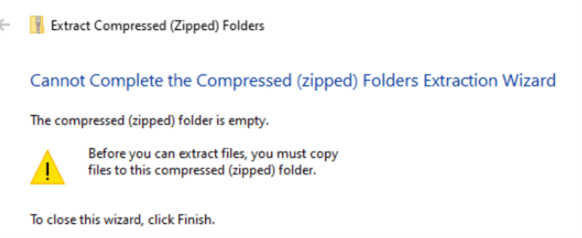
Extraction failed: results in an empty zip file, preventing access to the File Geodatabase.
Alternatively, exporting large datasets by creating a replica (as described in "How to Download and Extract a Hosted Feature Layer with Attachments as a File Geodatabase in ArcGIS Online") also fails, displaying an "Exporting domain failed" error.

Create Replica Status page showing a failed replica creation attempt with error message 'Exporting domains failed'.
Exporting as a shapefile works, but shapefiles do not preserve the layer’s domains.
The primary cause of this issue is the presence of a large number of domains in the feature layer. ArcGIS Online cannot process the export, resulting in empty zip files or failed domain exports.
To successfully export the feature layer to a File Geodatabase while preserving domains, use ArcGIS Pro to copy the domains manually:
Add the Layer to ArcGIS Pro- Open ArcGIS Pro and connect to your ArcGIS Online portal.
- Add the hosted feature layer from the portal to your project.
- In the Contents pane, right-click the layer, select Data and choose Export Features.
- Specify the output location and export the layer to a File Geodatabase. This creates a new feature class in the local File Geodatabase.
Copy Domains from the Original Layer
- Right-click the original portal layer in the Contents pane, select Data Design and open the Domains view.
- In the Domains view, click the top-left corner or press Ctrl+A to select all domain entries and their codes, then press Ctrl+C to copy them.
Paste Domains into the Exported Layer
- Open the Domains view for the newly exported feature class in the File Geodatabase.
- Paste the copied domain entries using Ctrl+V.
- Save the changes to apply the domains to the exported feature class.
After completing these steps, the feature class in the local File Geodatabase will include all domains from the original layer.