How to renew your Cityworks 23 license via Host Installer

If changes have been made to your licensing, it may be necessary to activate or reactivate your Cityworks license key. In this blog, we provide a step-by-step guide on how to renew your license. In Cityworks 23, an Administrator can login into the host site URL to update the license. To access the host site login page, add/host to your base site URL (ex. https://<server.domain.com/<sitename>/host) and follow the steps below.

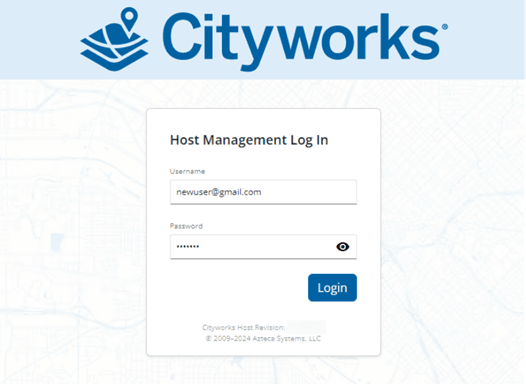
  1. Login as a Host Admin User.

Screenshot of the Cityworks Host Management login page showing fields for username and password, with “newuser@gmail.com” entered in the username field and a Login button below.

Cityworks Host Management login screen

  1. Once logged in, click the Core App option in the top left of the screen.
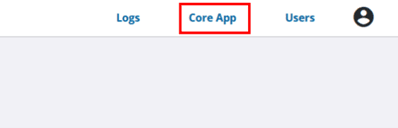
Screenshot of a web application navigation bar with three options: Logs, Core App (highlighted) and Users, plus a user profile icon on the far right.

 Navigation bar of the Cityworks Host Management interface showing active selection on “Core App"

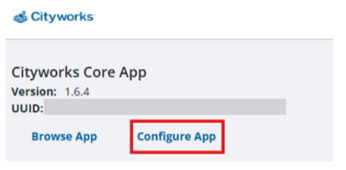
  1. Click “Configure App”.

Screenshot of the Cityworks Core App interface displaying version 1.6.4, a partially obscured UUID, and two buttons labeled “Browse App” and “Configure App,” with “Configure App” highlighted.

Cityworks Core App panel showing version details and the option to configure the application

  1. From here, Click the edit icon next to Cityworks License.
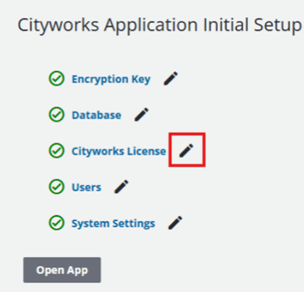
Screenshot of the Cityworks Application Initial Setup interface listing five items—Encryption Key, Database, Cityworks License, Users and System Settings—each marked complete with a check icon and an edit button. The Cityworks License row is highlighted, and an “Open App” button appears at the bottom.

Cityworks Application Initial Setup screen showing all setup components completed, with emphasis on the Cityworks License section

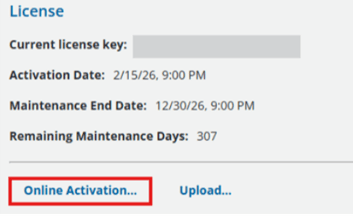
  1. Click “Online Activation”.

Screenshot of a Cityworks License information panel showing a partially obscured license key, activation and maintenance end dates, remaining maintenance days, and two action links labeled “Online Activation…” and “Upload…,” with “Online Activation…” highlighted.

Cityworks License screen displaying current license details and activation options

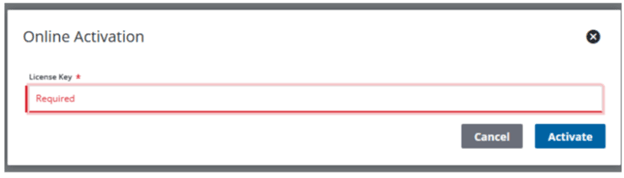
  1. Enter the License Key and click “Activate”.Screenshot of an Online Activation window showing an empty License Key field marked as required, a red “Required” validation message, and two buttons labeled “Cancel” and “Activate,” with a close icon in the top-right corner.

Online Activation dialog prompting the user to enter a required license key before proceeding

  1. Click “Restart Application”.

IMPORTANT: Unless otherwise noted, the key code remains the same code used to originally activate the site; only your contract dates are updated on the license server. However, it's possible that a new key code is issued, so it is important to verify by reviewing the documentation sent to you by the licensing team.

Offline Activation

If you require an offline activation, contact Esri Canada Technical Support via phone 1-877-441-0337 or by email support@esri.ca.

Essential Guides Available on MyCityworks

HOW TO: Renew Your Cityworks License File

Edit an Existing Installation

A special thank you to Brandon Strongman for co-authoring this blog post.

About the Author

Yalan Yang is an ArcGIS Support Analyst at Esri Canada, providing dedicated support for ArcGIS Online products. She assists customers with complex technical issues, troubleshoots product functionality and offers guidance to enhance the user experience. Yalan was introduced to GIS during her undergraduate studies in Urban Forestry at the University of British Columbia; she then obtained her Advanced Diploma in GIS from BCIT. Outside of work, she is a dessert lover and enjoys playing badminton.

Profile Photo of Yalan Yang